

How-to guide
How to Use Chrome Remote Desktop in Chrome: Setup, Features and Tips

How-to
How to Use Chrome Remote Desktop in Chrome: Setup, Features and Tips
On this page
- The short answer
- What is Chrome Remote Desktop and how do you start using it?
- How do you set up remote access to your own computer?
- What does the Chrome Remote Desktop extension actually do?
- How do you give someone remote support access temporarily?
- How do you access another computer remotely once it's set up?
- What are common ways people actually use Chrome Remote Desktop?
- What privacy and security settings should you know about?
- Is Chrome Remote Desktop no longer supported, and what commonly goes wrong?
- What if Chrome Remote Desktop doesn't cover what you need?
- Frequently asked
The short answer
Go to remotedesktop.google.com/access, click Download, and install the app to set up remote access to your own computer. To access it later, return to that page, click Access, pick the computer, and enter your PIN. To get remote support instead, use remotedesktop.google.com/support to generate a one-time sharing code.
What is Chrome Remote Desktop and how do you start using it?
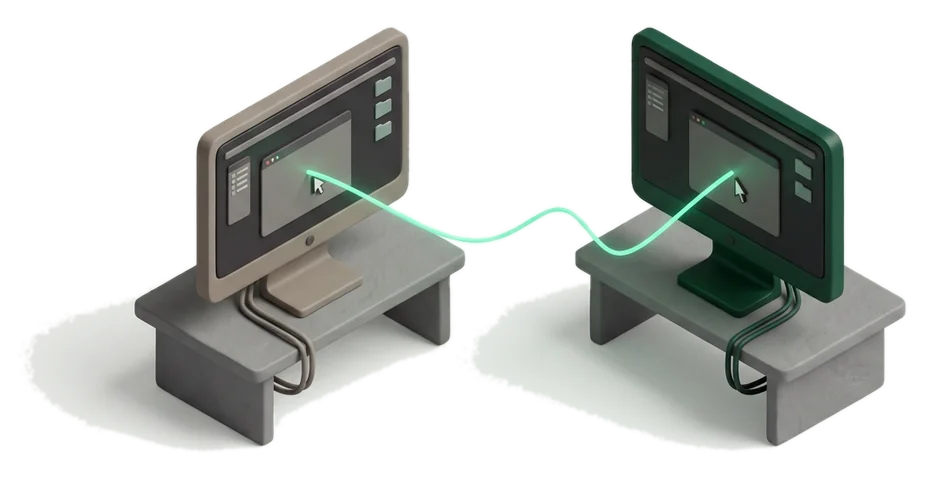
Chrome Remote Desktop is Google's free tool for reaching another computer's desktop and files from your browser or a Chromebook, over a fully encrypted connection. It works two ways: setting up long-term access to one of your own computers, or generating a short-term code so someone else can view and control yours for support.
Everything runs through remotedesktop.google.com plus a small native app you install once; the companion Chrome Web Store extension helps install, view and manage that native client from the web page, but the core feature works the same across Windows, Mac, Linux and ChromeOS.
How do you set up remote access to your own computer?
Setting up remote access lets you reach one specific computer any time later, using a PIN instead of generating a new code every session. Do this on the computer you want to reach, not the one you'll be connecting from.
- On the computer you want to access later, open Chrome.
- In the address bar, go to
remotedesktop.google.com/access. - Under "Set up remote access," click Download.
- Follow the on-screen directions to install Chrome Remote Desktop.
- Enter your computer's password if prompted, and adjust security preferences if asked, to grant the access it needs.
- Set a PIN when prompted; you'll use this PIN to connect from another device later.
Name the computer clearly
If you set this up on more than one machine, rename each one something specific like "Home desktop" or "Office laptop" during setup, so you don't guess wrong when picking a computer to connect to later.
What does the Chrome Remote Desktop extension actually do?
The Chrome Remote Desktop listing on the Chrome Web Store is a companion extension for the remotedesktop.google.com website, not a separate product. It enables the site to install, view and modify the native Chrome Remote Desktop client directly from the web page, rather than requiring you to manage the native app separately.
In practice, you rarely interact with the extension on its own; visiting remotedesktop.google.com/access or /support and following the prompts is enough, and the extension quietly handles the connection between the page and the installed native client.
How do you give someone remote support access temporarily?
Remote support is for a one-off session, like letting a family member or a helpdesk technician see and control your screen without setting up permanent access.
- On your computer, open Chrome and go to
remotedesktop.google.com/support. - Under "Get support," click Download and install Chrome Remote Desktop if you haven't already.
- Under "Get Support," select Generate Code.
- Copy the code and send it to the person you want to give access to.
- When they enter the code on their end, you'll see their email address in a dialog; select Share to allow full access.
- Click Stop Sharing whenever you want to end the session.
The person you shared with gets full access to your apps, files, emails, documents and browsing history for the session, so only share a code with someone you'd genuinely hand your keyboard to in person.
How do you access another computer remotely once it's set up?
If you already set up remote access on a computer, connecting to it later takes under a minute from any other device with Chrome.
- Open Chrome and go to
remotedesktop.google.com/access. - Click Access and select the computer you want to reach from your list.
- Enter the PIN you created during setup.
- Select the arrow to connect.
On a phone or tablet, use the dedicated Chrome Remote Desktop app instead of the browser, since mobile access to the desktop-style connection runs through that app rather than the mobile Chrome browser itself.
What are common ways people actually use Chrome Remote Desktop?
Chrome Remote Desktop covers a narrower job than a full VPN or a business remote-support platform, but it fits several everyday situations well.
- Helping a relative fix their computer: generate a support code over the phone, walk them through entering it, then take control to fix the actual problem instead of describing steps verbally.
- Reaching your home desktop while traveling: set up long-term access before a trip so you can grab a file or check something on your home machine from a laptop or a Chromebook.
- Working from a personal device: connect to your office desktop from home when you need software or files that only live on that specific machine.
- IT support for a small team: a helpdesk person can request a support code from a colleague's computer to troubleshoot without walking over to their desk.
- Cross-checking on a Chromebook: access a full Windows or Mac desktop's apps from a Chromebook that can't run that software natively.
What privacy and security settings should you know about?
Chrome Remote Desktop is built around a few specific safeguards rather than general settings you need to tune yourself, which is worth understanding before you rely on it.
| Detail | What it means |
|---|---|
| Fully encrypted sessions | Every remote session, whether long-term access or a one-off support code, is fully encrypted. |
| One-time support codes | A generated access code only works once; you have to generate a new one for another session. |
| Recurring confirmation | If you're sharing your computer for support, you're asked to confirm you want to keep sharing roughly every 30 minutes. |
| Developer data disclosure | The developer, Google Ireland Ltd., discloses that it will not collect or use your data through the extension. |
| Admin controls | Organizations can control which users are allowed to use Chrome Remote Desktop through admin policy. |
Remove access you no longer need
On remotedesktop.google.com/access, click Disable remote connections next to any computer you no longer want reachable, especially on a machine you've sold, retired, or handed to someone else.
Is Chrome Remote Desktop no longer supported, and what commonly goes wrong?
Chrome Remote Desktop is still an actively offered Google product, both as the remotedesktop.google.com web app and its companion Chrome Web Store extension; if you've seen claims it's discontinued, that usually refers to older client software or a specific enterprise tool being retired, not the consumer product itself.
Most connection problems trace back to one machine, not both
If a connection fails, check the computer you're connecting to first: it needs to be powered on, connected to the internet, and have the native Chrome Remote Desktop client actually running in the background, not just installed once and forgotten.
Other common issues include a mistyped PIN, a support code that already expired after its single use, or a firewall on the host computer blocking the connection. Chromebooks and locked-down office machines sometimes need an administrator to allow the app before it will run at all.
What if Chrome Remote Desktop doesn't cover what you need?
Chrome Remote Desktop is free and simple, but it's built for personal and small-scale use rather than managing many client computers or running frequent customer support sessions.
Alternatives to Chrome Remote Desktop
-
Productivity
Google's free option, best for accessing your own computers or giving a one-off support code to someone you trust; no account tiers or team management features.
-
Productivity
A lightweight companion that quickly generates and shares a Chrome Remote Desktop connection link, useful if you find the standard setup flow slower than you'd like.
-
Zoho AssistFreemium
Productivity
Built for starting free remote support and screen-sharing sessions from the browser, aimed more at support teams handling multiple customers than personal use.
-
Getscreen.meFreemium
Productivity
Lets you connect to your own devices or assist customers with one-click remote access, positioned closer to a lightweight business support tool.

If your main goal is staying connected with a remote team rather than controlling a specific computer, see the extensions for remote teams collection, which covers messaging, meeting and notification tools instead.
Extensions mentioned in this guide
- Chrome Remote DesktopAccess another computer's desktop securely straight from your Chrome browser.
- Remote Desktop LinkQuickly generate and share a Chrome Remote Desktop connection link or code.
- Zoho AssistStart free remote support and screen-sharing sessions right from your browser.
- Getscreen.meConnect to your own devices or assist customers with one-click remote access.
- Notifier for GmailGet desktop notifications for new mail across multiple Gmail accounts and labels
- Google Meet Desktop NotificationsShows desktop alerts when someone joins or messages in a Google Meet call
Frequently asked
Is Chrome Remote Desktop no longer supported?
No, it's still an actively offered Google product, available at remotedesktop.google.com and as a Chrome Web Store extension; claims of it being discontinued usually refer to a different, older tool.
How can I access another computer using Google Chrome Remote Desktop?
Go to remotedesktop.google.com/access, click Access, select the computer from your list, enter your PIN, and select the arrow to connect.
Can I use Chrome Remote Desktop away from home?
Yes, once you've set up remote access on your home computer, you can connect from any device with Chrome or the mobile app, anywhere you have an internet connection.
What are some common problems with Chrome Remote Desktop?
The host computer being asleep or offline, an expired one-time support code, a mistyped PIN, and firewalls blocking the connection are the most common causes of failed sessions.
Do I need to install anything to use Chrome Remote Desktop?
Yes, both the computer you're accessing and, for some workflows, the computer you're connecting from need the native Chrome Remote Desktop client installed via remotedesktop.google.com.
Is Chrome Remote Desktop free?
Yes, both remote access to your own computers and generating one-time support codes are free features of the product.
How do I give someone temporary access to my computer with Chrome Remote Desktop?
Go to remotedesktop.google.com/support, click Generate Code, and send that code to the person; they enter it on their end, and you click Share once you see their email address.
How do I stop sharing my screen on Chrome Remote Desktop?
Click Stop Sharing in the Chrome Remote Desktop window at any point during a support session to end it immediately.
Does Chrome Remote Desktop work on a Chromebook?
Yes, Chrome Remote Desktop is fully cross-platform and works on Chromebooks in addition to Windows, Mac and Linux computers.
Can I use Chrome Remote Desktop from my phone?
Yes, but use the dedicated Chrome Remote Desktop mobile app rather than the mobile Chrome browser, since that's how phone and tablet access to a desktop connection is handled.
How do I remove a computer from my Chrome Remote Desktop list?
On remotedesktop.google.com/access, find the computer you want to remove and click Disable remote connections next to it.
Does Chrome Remote Desktop collect my data?
The developer, Google Ireland Ltd., discloses that the extension will not collect or use your data, though the sessions themselves give a connected person full access to whatever is on the shared screen.