

How-to guide
How to Find, Open, and Pin Your Chrome Extensions

How-to
How to Find, Open, and Pin Your Chrome Extensions
On this page
- The short answer
- Where do you find Chrome extensions?
- How to open and pin an extension to the toolbar
- How to open the full extensions management page
- How do I install a new Chrome extension?
- Chrome extension menu names, quick reference
- Which extensions are worth pinning to the toolbar?
- Finding extensions on a Chromebook and on your phone
- What to do when an extension is missing or broken
- Frequently asked
The short answer
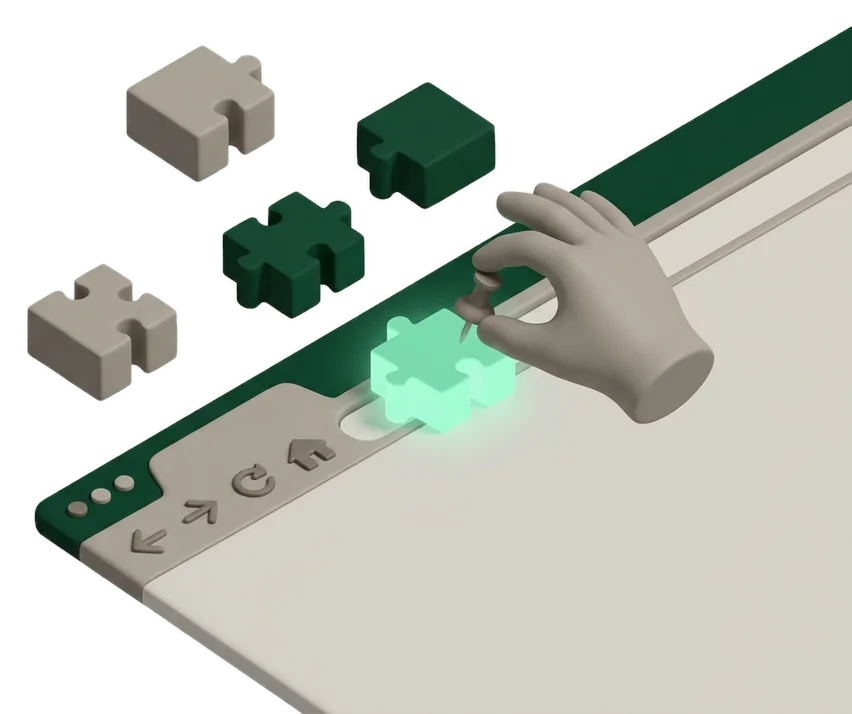
Chrome extensions live behind the puzzle-piece icon to the right of the address bar; click it, then click the pin icon next to any extension to keep it visible on the toolbar. To manage, disable, or remove one, open the three-dot menu, choose Extensions, then Manage extensions, or go directly to chrome://extensions.
Where do you find Chrome extensions?
Every installed extension lives behind the puzzle-piece icon on the right side of the address bar, next to your profile picture. Clicking it opens a dropdown listing every extension you've added, whether or not it's currently visible on the toolbar itself.
That puzzle icon is also where you decide which extensions get a permanent spot on the toolbar and which stay tucked away. For anything beyond viewing the list, like disabling, removing, or troubleshooting an extension, Chrome has a separate, more detailed management page.
- Puzzle-piece icon: the everyday list of what's installed and a way to open any of them.
chrome://extensionsorManage extensions: the full settings page for each extension.- The Chrome Web Store: where you install new extensions in the first place.
How to open and pin an extension to the toolbar
A newly installed extension doesn't automatically get a toolbar spot; it starts out tucked behind the puzzle icon until you pin it.
- Click the puzzle-piece icon (labeled
Extensions) just to the right of the address bar. - Find the extension you want in the dropdown list.
- Click the pin icon next to its name; it turns solid to show the extension is now pinned.
- The extension's icon appears directly on the toolbar; select it any time to use the extension.
- To unpin it later, open the puzzle icon again and click the same pin icon, which toggles it back off the toolbar.
Pinning doesn't change what an extension can do, only whether its icon sits on the visible toolbar or one click deeper behind the puzzle menu. Extensions you use constantly, like a password manager or a clipboard tool, are worth pinning; ones you rarely touch are fine left behind the puzzle icon.
How to open the full extensions management page
For anything beyond opening an extension, disabling it, allowing it in Incognito, or removing it entirely, Chrome has a dedicated page separate from the puzzle-icon dropdown.
- Click the three-dot
Moremenu in the top-right corner of Chrome. - Select
Extensions, thenManage extensionsfrom the submenu that opens. - Alternatively, type
chrome://extensionsdirectly into the address bar and pressEnter.
This page works the same on every platform
The chrome://extensions page and its toggle switches look and behave identically on Windows, Mac, Linux, and ChromeOS, since it's the same underlying Chrome browser on each one.
How do I install a new Chrome extension?
Installing starts from the Chrome Web Store, not from the puzzle icon, since that dropdown only ever shows what's already installed.
- Open the Chrome Web Store and find the extension you want.
- Select
Add to Chrome. - Review the permissions prompt, then select
Add extensionto confirm. - The extension appears behind the puzzle icon immediately; pin it if you want it on the toolbar.
Extensions can't be added while browsing in Incognito mode or as a guest; switch to a regular browsing window first. If you install a program on Windows or Mac that bundles a Chrome extension, it can appear in the puzzle-icon list on its own the next time you open Chrome, and you'll be prompted to Enable or Remove it.
Which extensions are worth pinning to the toolbar?
A cluttered toolbar defeats the purpose of pinning, so it's worth being selective about what earns a permanent spot rather than pinning everything you install.
Extensions people commonly pin for daily use
-
BitwardenFreemium
Security & Privacy
A password manager you'll click on nearly every login, making it one of the clearest cases for a permanent toolbar spot.
-
Productivity
Saves and finds copied text instantly; pinning it saves a trip through the puzzle menu every time you need clipboard history.
-
Read LaterFree
Productivity
Stores links to read later and keeps open tabs organized, useful to pin if you save articles throughout the day.
-
HoneyFree
Shopping
Scans checkout pages for coupon codes automatically; pinned so it's one click away right when you're about to pay.
-
Note SidebarFree
Productivity
Keeps a persistent note sidebar open for to-dos and meeting notes, worth pinning if you use it several times a day.




Anything used a few times a week or less is usually fine left behind the puzzle icon; pinning it just adds toolbar clutter without saving meaningful time.
Finding extensions on a Chromebook and on your phone
The puzzle icon and chrome://extensions page work identically on a Chromebook, since ChromeOS runs the same Chrome browser as a laptop or desktop. Phones are a different story.
- Chromebook: the puzzle icon, pinning, and
chrome://extensionspage all work exactly as described above. - Android and iOS Chrome apps: neither supports installing traditional desktop-style extensions at all, so there's no puzzle icon to find on a phone.
- Work or school Chromebooks: an organization can block installing certain extensions or force-install others, which is why an extension you expect to find sometimes isn't available to add.
Looking for an extension on your phone won't work
If you've searched your phone's Chrome app for the puzzle icon and can't find it, that's expected: mobile Chrome doesn't support desktop extensions, full stop, regardless of Android or iOS.
What to do when an extension is missing or broken
A few specific problems come up often enough with the extensions page that they're worth knowing before assuming something is permanently broken.
- Extension icon disappeared from the toolbar
- Open the puzzle icon; it was likely unpinned rather than removed. Click the pin icon next to it again to bring it back.
- Extension shows a corrupted warning
- On
chrome://extensions, find the extension and selectRepair, then confirm withRepair extensionto reinstall it without losing saved settings. - Extension won't install and shows an untrusted warning
- With Enhanced Safe Browsing protection on, Chrome warns before installing extensions not yet trusted by the program; select
Continue to installif you trust the developer, orCloseto cancel. - Extension is greyed out and can't be enabled
- An organization admin has likely blocked it on a managed device; check with school or work IT rather than troubleshooting it as a local Chrome problem.
Extensions mentioned in this guide
- BitwardenOpen-source password manager.
- Clipboard Manager ProSave and find copied text instantly in a simple organized panel
- Read LaterStore links to read later and keep your open tabs organized
- HoneyScans checkout and product pages across shopping sites to find coupon codes
- Note SidebarKeep a persistent note sidebar open for to-dos, meeting notes, and ideas
Frequently asked
Where can I find the Chrome extension page?
Type chrome://extensions into the address bar, or click the three-dot More menu, then Extensions, then Manage extensions to reach the same page.
Where is the Chrome extension folder located?
Installed extensions are stored inside Chrome's own profile data folder on your device, but you never need to open it directly; the chrome://extensions page manages everything without touching the file system.
How do I install Google Chrome extensions?
Open the Chrome Web Store, find the extension, select Add to Chrome, then confirm the permissions prompt by selecting Add extension.
Where to find extensions in settings?
Chrome's main Settings page doesn't include extensions directly; instead use the three-dot More menu, then Extensions, then Manage extensions, or go straight to chrome://extensions.
Where to find Chrome extensions on a phone?
Nowhere: Chrome for Android and Chrome for iOS don't support installing desktop-style extensions, so there's no puzzle icon or extensions menu on either mobile app.
Where to find Chrome extensions on a Chromebook?
In the exact same place as on a laptop: the puzzle-piece icon next to the address bar, and the full chrome://extensions page for managing them.
How do I pin an extension so it's always visible?
Click the puzzle-piece icon, find the extension in the list, then click the pin icon next to its name so it moves onto the visible toolbar.
Why did my extension icon disappear?
It's almost always unpinned rather than removed; open the puzzle icon and click the pin next to it again to restore it to the toolbar.
Can I add extensions in Incognito mode?
No, Chrome doesn't allow adding extensions while browsing in Incognito or as a guest; switch to a regular window to install one.
Why can't I install a certain extension on my work Chromebook?
Organizations can block specific extensions or restrict installs to an approved list on managed Chromebooks, so unavailable extensions are usually a policy decision rather than a technical error.
How do I fix a corrupted Chrome extension?
Open chrome://extensions, find the extension showing a corruption warning, select Repair, and confirm with Repair extension to reinstall it in place.
What does the Enhanced Safe Browsing warning on an extension mean?
It means the extension's developer hasn't yet reached Chrome's trusted developer status; you can still install it by selecting Continue to install if you trust the source.